How to change an image inside a Lottie animation
Replace any image layer inside a Lottie JSON or ZIP file in under 30 seconds. No After Effects. No signup. Entirely in your browser.
The problem
Lottie animations almost always arrive with placeholder assets — a stock logo, a generic illustration, a sample product photo. You need them gone before the animation ships to your app, your landing page, or your email campaign.
The traditional path is painful: ask the original designer to open the .aep source in After Effects, swap the image, re-export the Lottie. That round trip costs hours, sometimes days. If the designer is unavailable or the source file is lost, the asset is effectively frozen.
Code-level alternatives exist (manually editing the JSON, re-encoding base64 assets), but they require engineering time and are error-prone for any animation with more than a couple of image layers.
The browser workflow
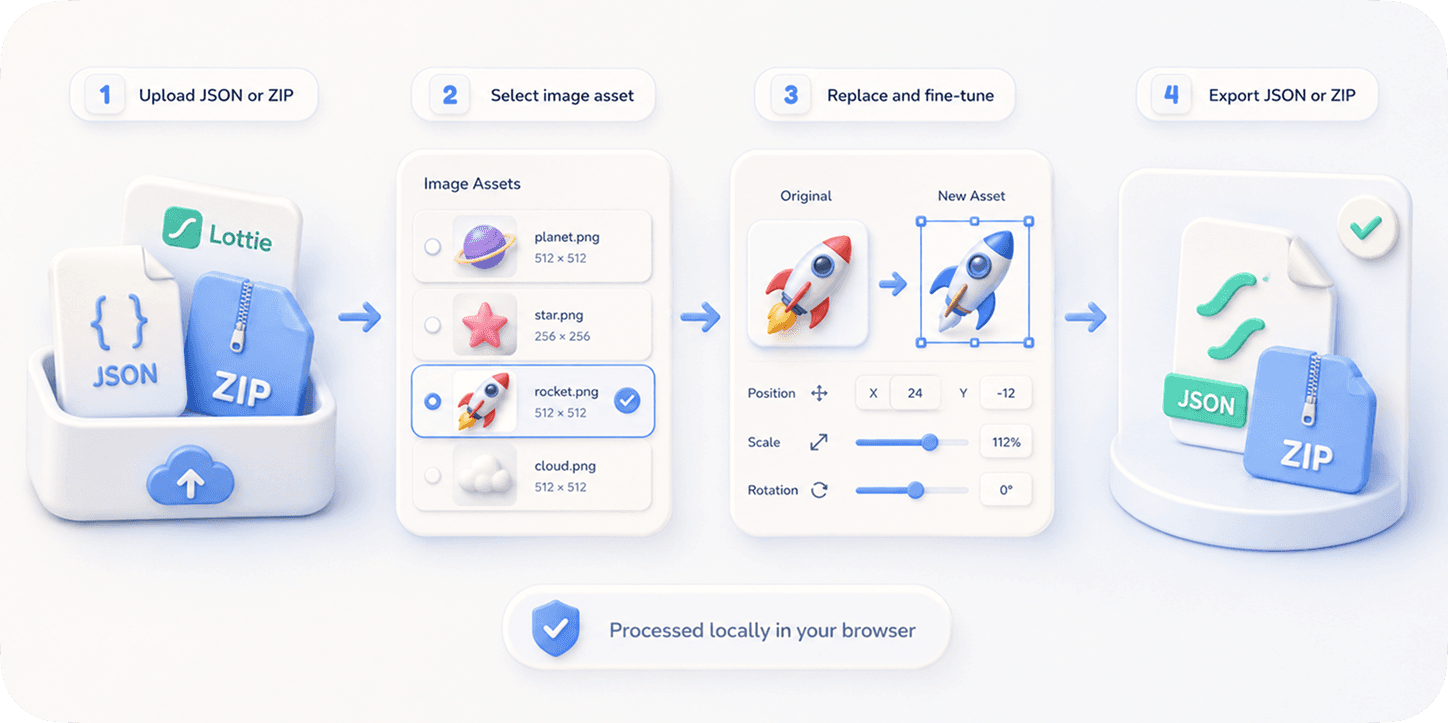
EasyLottie's ImageReplace tool reads every image layer inside your Lottie file — whether the assets are inline base64 in a .json, or external files inside a .zip — and lets you swap any of them with a single drag-and-drop.
Once a layer is selected, you can fine-tune position, scale, and crop directly in the preview. The change is non-destructive: nothing is uploaded to a server, and the original file stays untouched until you click Export. The exported ZIP contains the edited JSON plus all the original and replaced assets, ready to drop into your project.
The whole flow — open, drag, swap, export — typically takes under 30 seconds for a single layer. Most users finish a 3-layer brand customization in under 2 minutes.
Complete the task
Open the tool
Go to easylottie.com/imagereplace. It loads instantly — no signup, no install.
Upload your Lottie file
Drag your .json or .zip file onto the upload area. The preview renders immediately on the left; every image layer is listed on the right.
Click the image you want to replace
Click an image directly in the live preview, or pick it from the Image Resource panel. The selected layer highlights so you know exactly what you're editing.
Drop in the new image
Drag your replacement file (PNG / JPG / WebP) onto the selected layer, or use the Replace button. The preview updates in real time.
Fine-tune and export
Use the precision controls to nudge position, scale, or crop. When you're happy, click Export to download a new ZIP — JSON plus all the renamed assets, ready to ship.
Common use cases
Brand customization
Swap stock product photos for your real product imagery before shipping a marketing Lottie.
Localization
Generate per-region variants of the same animation by swapping in localized illustrations or text-baked images.
A/B testing
Produce 5 image variants of an onboarding animation in 10 minutes to test conversion impact.
Frequently asked questions
What image formats can I use as a replacement?
PNG, JPG, JPEG, and WebP. The tool automatically detects the source layer's expected format and re-encodes if needed.
Will the image quality degrade after replacement?
No. Your replacement asset is embedded as-is into the exported file. There is no re-compression unless you explicitly choose a different format.
Can I replace multiple images in one session?
Yes. You can swap as many layers as you want before exporting — the export bundles everything in one ZIP.
Will the edited Lottie play correctly in lottie-web / lottie-ios / lottie-android?
Yes. The exported file is a valid Lottie JSON with standard asset references. It plays in every Lottie runtime.
What's the maximum file size?
50 MB per Lottie file. Replacement images can be up to 20 MB each.