Edit a Lottie animation for your Angular app
ngx-lottie renders the file through lottie-web — it doesn't change what's inside it. Recolor layers and replace images to match your Material theme in the browser, then point your AnimationOptions at the file. No After Effects.
The problem
You added ngx-lottie, set up an options object with { path: 'assets/anim.json' }, and <ng-lottie [options]="options"> animates flawlessly. But its colors clash with your Angular Material palette, and the file carries a stock illustration. The library plays the animation; it has no API for rewriting fill colors per layer or replacing an embedded asset.
The workarounds are awkward: patch the JSON by hand, or hook lottie-web instance APIs to override colors after load. Both are fragile and have to be redone every time the source file changes — and neither is something you want living in a component for a purely visual tweak.
Sending the file back to a designer and through After Effects just to align it with your theme breaks your build loop. You want the animation to sit in assets/ like any other file: correct, referenced in angular.json, and shipped without runtime tinkering.
The browser workflow
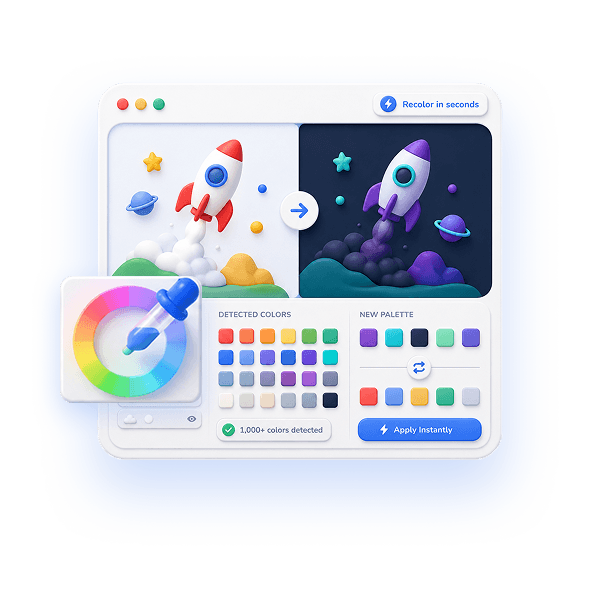
EasyLottie corrects the file before it enters your assets folder. Color Swap auto-detects every color across fills, strokes, and gradients and lets you remap each to your Material theme's exact hex values, with a live preview of every edit.
Need to replace a logo or illustration? Image Replace detects embedded image assets in .json or .zip files and lets you drop in your own, fine-tuning scale and position. Both tools run entirely in the browser — no upload, and no lottie-web override code to maintain.
Export a standard Lottie, place it in assets/, reference it in your AnimationOptions, and render it with ngx-lottie. Because the colors and assets are already correct, the component stays declarative with nothing to patch.
Complete the task
Download the animation
Get the .json or .zip you intend to render with ngx-lottie, from a library or a handoff.
Open the right EasyLottie tool
Use Color Swap at easylottie.com/colorswap to match your theme, or Image Replace to swap logos and illustrations — both run in the browser.
Recolor to your Material palette
Click each detected color and enter the hex from your theme. The live preview confirms the animation matches your Material design.
Export the file
Click Export to download a standard Lottie JSON or ZIP with valid asset references, ready for any Lottie runtime including Angular's.
Wire it into Angular
Drop the file into assets/, reference it in your AnimationOptions, and render with <ng-lottie [options]="options"> — no color overrides required.
Common use cases
Material-matched UI states
Recolor loading and empty-state animations to your primary and accent colors so they feel native to your Angular Material app.
Light and dark themes
Produce a dark-mode version of the same Lottie and switch source files with your theme service.
Multi-tenant builds
Generate per-client color variants of one base animation for flavored Angular builds without reopening any source.
Frequently asked questions
Can I recolor a Lottie without lottie-web overrides?
Yes. Color Swap reassigns every detected color in the file itself, so the animation arrives already matching your theme and your ngx-lottie options stay declarative.
Does the exported file work with ngx-lottie?
Yes. The export is standard Lottie JSON with intact structure, which ngx-lottie renders through lottie-web the same as any compatible file.
Can I swap an embedded image for an Angular animation?
Yes. Image Replace detects embedded image assets in JSON or ZIP files and lets you replace them, then export a file you can drop straight into assets/.
Is my file uploaded during editing?
No. Both tools are 100% local and browser-only — your animation and assets never leave your machine.
Will recoloring break playback or controls?
No. Only color values change; frames, timing, and structure are untouched, so loop, speed, and the AnimationItem API behave exactly as before.