Edit a Lottie animation for your Flutter app
The Flutter lottie package plays the file — it does not change what is inside. Recolor layers and swap assets to match your app theme in the browser, then drop the file into your assets folder. No After Effects.
The problem
You added the lottie package to pubspec.yaml, dropped Lottie.asset('assets/anim.json') into your widget tree, and it animates flawlessly. But its colors clash with your ThemeData, and the file carries a placeholder logo. The package renders the animation; it does not let you edit its palette or its assets.
Flutter's lottie package exposes playback controls — controllers, repeat, frame rate — but no first-class API for rewriting fill colors per layer or replacing an embedded image. People reach for ValueDelegate color overrides, but mapping every shape by keypath is fiddly and has to be redone whenever the source file changes.
Round-tripping the file through a designer and After Effects just to align it with your Material or Cupertino theme breaks your build loop. You want the animation to behave like any other asset in assets/: correct on disk, referenced in pubspec.yaml, and shipped without runtime tinkering.
The browser workflow
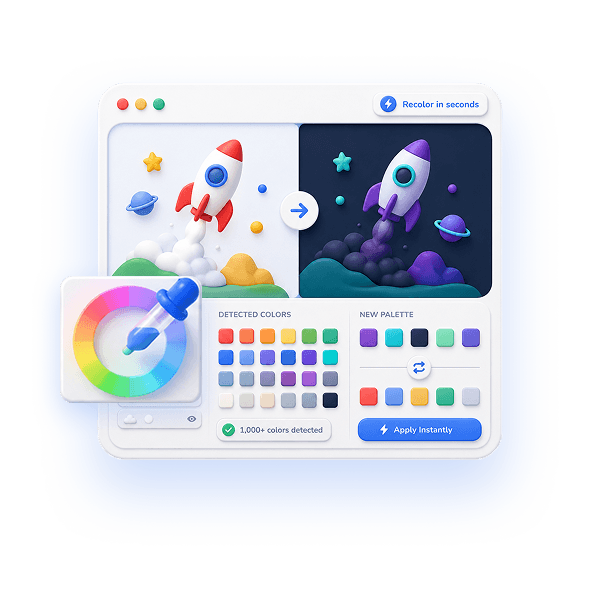
EasyLottie fixes the file before it enters your assets folder. Color Swap auto-detects every color in the animation — up to 1000+ distinct values across fills, strokes, and gradients — and lets you reassign each to your theme's exact hex codes, with every change shown in a live preview.
Need to replace a logo or illustration as well? Image Replace detects embedded image assets in .json or .zip files and lets you drop in your own, fine-tuning scale and position. Both tools run 100% locally in the browser, so there is no upload and no ValueDelegate keypath code to maintain in your widgets.
Export a standard Lottie file, place it in your assets/ directory, declare it in pubspec.yaml, and load it with Lottie.asset. Because the colors and assets are already correct, your widget stays a one-liner — no per-layer color delegates to keep in sync.
Complete the task
Download the animation
Get the .json or .zip you intend to render with the Flutter lottie package, from a library or a handoff.
Open the right EasyLottie tool
Use Color Swap at easylottie.com/colorswap to match your theme, or Image Replace to swap logos and illustrations. Both run in the browser.
Recolor to your theme
Click each detected color and enter the hex from your ThemeData. The live preview confirms the animation matches your Material or Cupertino palette.
Export the file
Click Export to download a standard Lottie JSON or ZIP — valid asset references, ready for any Lottie runtime including Flutter's.
Add it to your Flutter app
Drop the file into assets/, declare it in pubspec.yaml, and render it with Lottie.asset('assets/anim.json') — no color delegates required.
Common use cases
Theme-matched onboarding
Recolor an onboarding animation to your app's primary and accent colors so it feels native instead of pulled from a library.
Light and dark variants
Produce a dark-mode version of the same Lottie and switch between them based on Theme.of(context).brightness.
White-label builds
Generate per-client color variants of one base animation for flavored builds without reopening any source file.
Frequently asked questions
Can I recolor a Lottie without ValueDelegate keypath code?
Yes. Color Swap reassigns every detected color in the file itself, so the animation arrives already matching your theme and your widget code stays a simple Lottie.asset call.
Does the exported file work with the Flutter lottie package?
Yes. The export is standard Lottie JSON with intact structure, which the Flutter lottie package renders the same as any other compatible Lottie file.
Can I swap an embedded image for a Flutter animation?
Yes. Image Replace detects embedded image assets in JSON or ZIP files and lets you replace them, then export a file you can drop straight into assets/.
Is my file uploaded during editing?
No. Both tools are 100% local and browser-only — your animation and assets never leave your machine.
Will recoloring break playback or controllers?
No. Only color values change; frames, timing, and structure are untouched, so AnimationControllers, repeat, and frame rate behave exactly as before.