Edit a Lottie animation for your Webflow site
Webflow's Lottie element plays the JSON you upload — it has no controls to recolor layers or swap the artwork inside. Fix the file first in the browser, then drop the corrected JSON into the Lottie embed. No After Effects.
The problem
You dragged a Lottie element onto the canvas, uploaded a JSON from a library, and Webflow plays it beautifully with scroll and hover triggers. But it still shows a placeholder logo and a palette that fights your site's brand — and Webflow's Lottie settings only control playback, trigger, and speed, not the colors or images baked into the file.
Webflow gives you no way to recolor a Lottie layer or replace an embedded asset inside the Designer. Your only levers are a custom-code embed that walks the JSON at runtime — fragile and easy to break with Webflow's hosting — or going back to a designer to re-export from After Effects, which stalls your launch.
Editing the JSON outside Webflow by hand is its own trap: colors live as normalized RGB arrays across nested shape groups, and image assets may be base64-embedded or zipped with generic names. One wrong edit and the upload silently fails to render on the published site.
The browser workflow
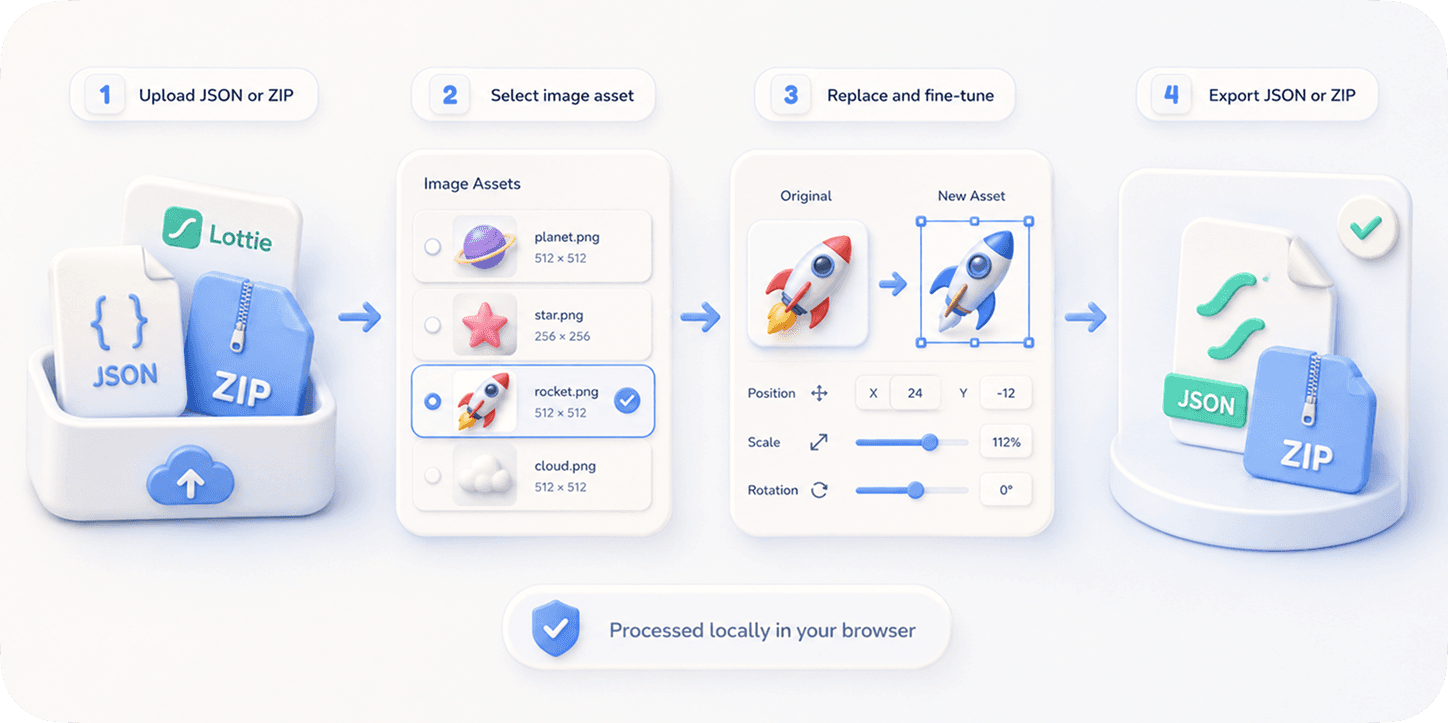
EasyLottie gets the file right before you ever upload it to the Lottie element. Image Replace detects every embedded image asset in .json or .zip files and lets you drop in your own logo, screenshot, or illustration, fine-tuning scale and position in a live preview.
Color Swap auto-detects up to 1000+ colors in the same animation and lets you reassign each to your exact brand hex values, with 20-step undo so you can experiment safely. Both tools are 100% local and browser-only — no signup, no upload, and no custom-code embed to maintain inside Webflow.
Export a standard Lottie JSON, then upload it to your Webflow Lottie element exactly as before. Your scroll triggers, hover interactions, and speed settings keep working — only the artwork and colors are now correct, with no fragile runtime scripts riding along on the published site.
Complete the task
Download the animation JSON
Grab the .json or .zip you plan to upload to a Webflow Lottie element, from a public library or a designer.
Open the right EasyLottie tool
Use Image Replace at easylottie.com/imagereplace for logos and images, or Color Swap to match your brand palette. Both run in the browser.
Edit the artwork and colors
Swap embedded assets and reassign detected colors to your brand hex values. The live preview shows exactly what the published site will render.
Export the corrected JSON
Click Export to download a standard Lottie file with valid asset references — ready to upload to the Webflow Lottie element.
Upload to your Lottie element
Replace the JSON on your Webflow Lottie element. Your existing scroll, hover, and speed settings continue to work unchanged.
Common use cases
Brand-matched hero animations
Recolor a downloaded hero animation to your site palette and swap in your product screenshot so the page looks bespoke, not templated.
Client site handoffs
Deliver Webflow sites with on-brand animations by recoloring stock Lottie files to each client's palette in minutes.
Landing page A/B tests
Produce several artwork variants of one animation, upload each to a Lottie element, and compare conversion without designer time.
Frequently asked questions
Can I recolor a Lottie that Webflow cannot edit?
Yes. Webflow's Lottie element only controls playback. Recolor and swap assets in EasyLottie first, then upload the corrected JSON to the same element.
Will my Webflow triggers and interactions still work?
Yes. EasyLottie only changes artwork and color values, not the animation structure, so your scroll, hover, and speed settings on the Lottie element keep working.
Do I need a custom-code embed to change colors?
No. Editing the file once with Color Swap or Image Replace avoids fragile runtime scripts and keeps your Webflow build clean.
Is my file uploaded to EasyLottie while editing?
No. Both tools are 100% local and browser-only — your animation and replacement assets never leave your machine before you upload the export to Webflow.
Does it work with the JSON Webflow expects?
Yes. The export is standard Lottie JSON, which is exactly what the Webflow Lottie element accepts, so it renders on the published site as expected.