EasyLottie Guide
How to Change the Colors of an Animated SVG (Figma Export)
How to recolor an animated SVG without losing its motion, why Figma exports often resist simple color edits, and a tested before-and-after of a real recolor.
Why recolor the SVG instead of re-exporting from Figma
When an animated SVG comes back in the wrong palette, reopening Figma, editing every layer, and re-exporting is slow, and often you do not own the source file. If the motion is right and only the colors are wrong, a direct recolor is faster and safer. You keep the exact animation and change only the fills and strokes.
This comes up with Figma motion exports, icon libraries, and marketplace SVGs that ship in a generic palette or are designed for light mode when you need dark mode. It also comes up in handoffs: a developer receives the SVG, the brand team changes a color a week later, and nobody wants to round-trip through the design file for one hex value.
How an animated SVG stores color and motion
An animated SVG from a design tool usually has two parts. The motion is in a style element as CSS @keyframes, applied to shapes through class names. The color is on the shapes themselves, as fill and stroke attributes or inline style properties. Because the two are separate, colors can be replaced without touching the animation, as long as the editor changes only color tokens.
Figma adds a complication. To preserve wide-gamut colors, its exports often write a color twice in the same style attribute: first as a hex value, then as color(display-p3 r g b). In CSS the last valid declaration wins, so on browsers that support display-p3 the hex value is ignored. Edit only the hex and nothing changes on screen. That is the most common reason people think an SVG recolor did not work.
Step-by-step: recolor an animated SVG online
Everything runs locally in your browser, so the SVG is never uploaded.
- Open the SVG Color Changer and drop in your .svg file.
- The tool strips display-p3 overrides, maps named colors to hex, and lists every fill and stroke color it finds. The animation keeps playing in the preview.
- Click a swatch and pick a new color. The preview updates immediately.
- Repeat for each color you need to change, checking contrast against the background the SVG will sit on.
- Download the recolored SVG and open it in a browser to confirm the animation still runs.
Check the result before you ship
Open the downloaded file directly in a browser tab. The motion should be identical to the original. Then place it on its real background: a color that worked on white may disappear on a dark surface, and thin strokes lose contrast first.
If the SVG goes into a codebase, diff it against the original. A clean recolor changes only color values and, for Figma exports, removes the p3 overrides. Any change to the style block, class names, or path data means something other than a recolor happened.
Recolor, or convert to Lottie?
If the destination needs a Lottie rather than an SVG, an animated SVG can be converted into a true vector Lottie with the Figma to Lottie tool. Recolor first if you want the change baked into both files. Convert first if you expect more color changes later, because Lottie colors can be swapped again at any time in the Lottie Color Changer.
Lottie is usually the better runtime format for apps, because native players on iOS and Android support it and it offers playback control. SVG is simpler for a web page where CSS animation is enough.
Quick checklist
- Drop the .svg into the SVG Color Changer; nothing is uploaded.
- Review every detected fill and stroke color.
- Watch for display-p3 overrides in Figma exports.
- Recolor all related swatches in one pass to avoid merging colors you need apart.
- Diff the output: only color values should change.
- Convert to Lottie afterwards if your app needs it.
Reproduce the workflow
Use these local sample files to repeat the checks described in this guide. Review the file before using it in a production project.


Tested result: recoloring a Figma-style animated SVG
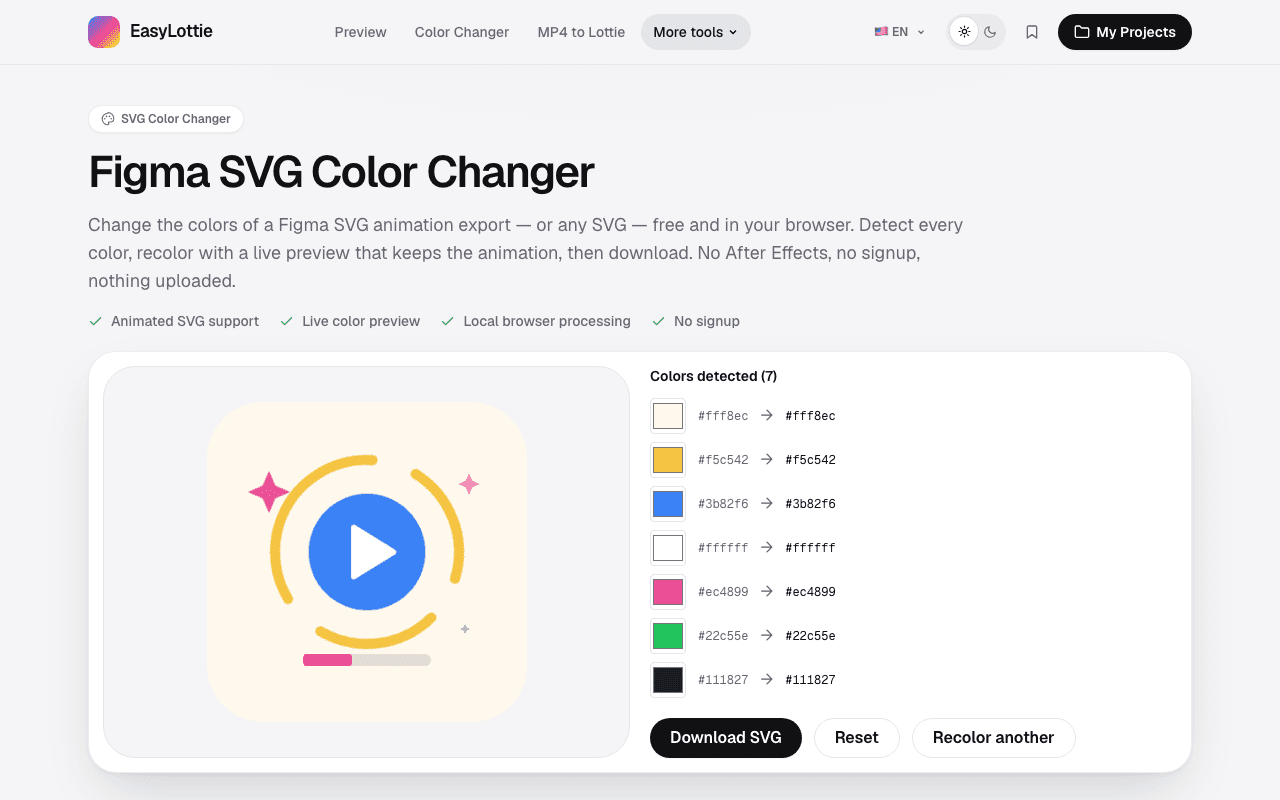
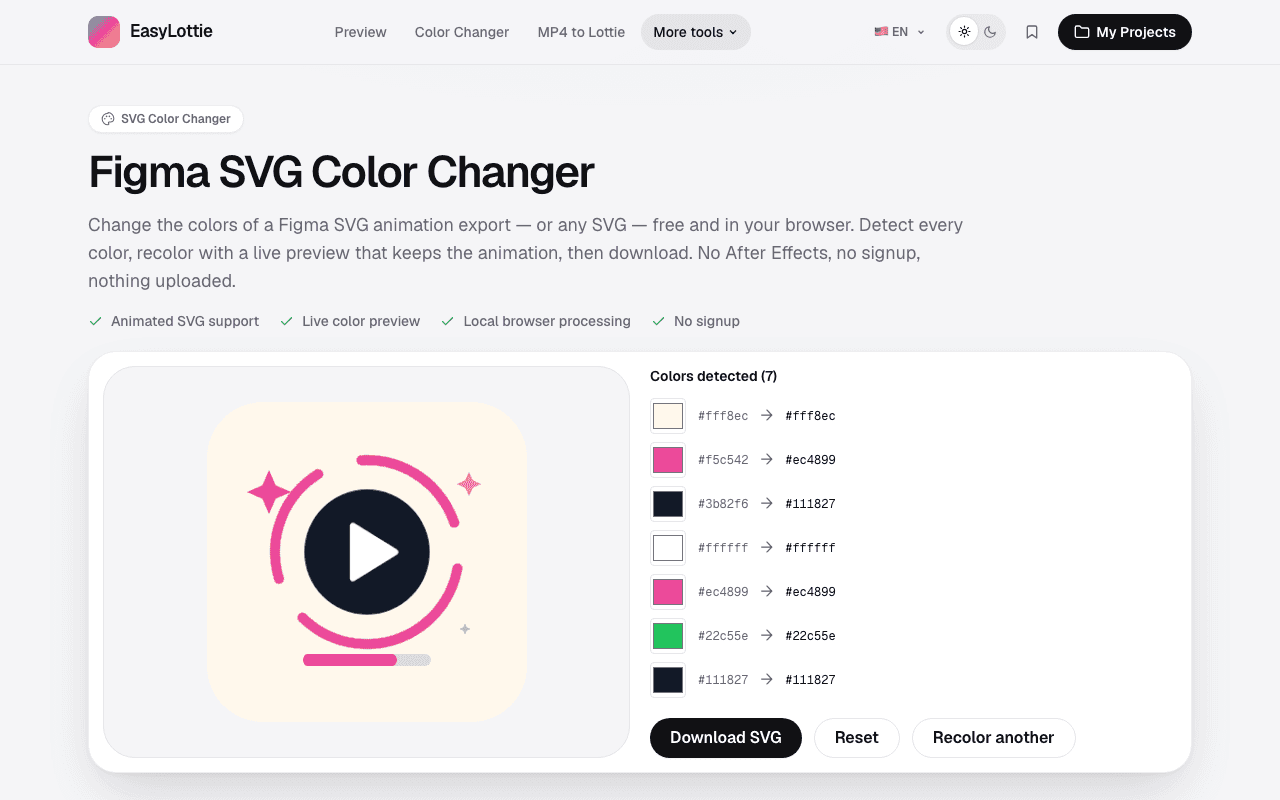
Our sample SVG mimics a Figma animation export: CSS @keyframes in a style block, animated classes on the shapes, and three main colors written twice, once as hex and once as a color(display-p3 …) override. We changed blue (#3B82F6) to #111827 and yellow (#F5C542) to #EC4899, downloaded the result, and compared it with the original.
| Check | Original | After recolor |
|---|---|---|
| @keyframes blocks | 4 | 4, unchanged |
| animation declarations and classes | 4 | 4, unchanged |
| display-p3 color overrides | 3 | 0, removed so the hex value applies |
| Distinct colors | 7 | 5, because both new colors already existed |
| File size | 1,945 bytes | 1,825 bytes |
Only color values changed. The style block, keyframes, classes, and geometry were untouched, so the downloaded file animates exactly as before.
The display-p3 overrides are the reason many Figma exports seem to ignore color edits. A browser that supports wide-gamut color uses the later p3 declaration and never shows the hex value you changed. Removing the override makes the editable hex value the one that renders.
Both new colors were already used elsewhere in the badge, so seven distinct colors became five. If you later want to change merged colors separately, start again from the original file.
Know the limits
- Colors defined in gradients, filters, CSS variables, or JavaScript are not detected by a fill-and-stroke scan and need to be edited in the source.
- Removing display-p3 overrides means wide-gamut displays show the sRGB hex color. For most brand colors the difference is invisible; for very saturated colors it can be noticeable.
- SVGs animated with SMIL or JavaScript keep their animation code, but colors set by that code at runtime are not changed.
- Merged colors cannot be separated again in the same session. Recolor from the original if you need them apart.
If your result is different
- 1.If a color you changed does not update in the browser, search the SVG for color(display-p3. A later override is winning.
- 2.If a visible color is not listed, look for a gradient stop, a CSS variable, or a filter. Those need a manual edit.
- 3.If the animation stops after editing in another tool, check that the style block and class attributes survived. Some optimizers remove unused-looking classes.
- 4.If you need a Lottie rather than an SVG, convert after recoloring, or convert first and recolor the Lottie.
Frequently asked questions
Can I change the colors of an animated SVG without breaking the animation?
Yes. In our test all four @keyframes blocks and animated classes were unchanged after recoloring; only color values and the display-p3 overrides changed.
Why does changing the hex color in a Figma SVG do nothing?
Figma often writes a color(display-p3 …) value after the hex in the same style. Browsers that support display-p3 use the later value. Remove the override, or use a tool that does, and the hex applies.
Is my SVG uploaded anywhere?
No. Detection, recoloring, and download happen locally in your browser.
Why did the number of colors go down after I recolored?
Two swatches now share the same value, so they are listed as one. Recolor from the original file if you need to change them separately later.
Can I turn the recolored SVG into a Lottie?
Yes. Use the Figma to Lottie tool to convert an animated SVG into a vector Lottie.
Primary sources
Technical behavior was checked against the original runtime or format documentation below.