EasyLottie Guide
How to Change Colors in a Lottie Animation Online
Recolor a Lottie animation for brand palettes, dark mode, campaigns, or client handoff without manually editing JSON.
When a Lottie color editor is the right tool
Most Lottie recoloring jobs are not motion-design jobs. You already like the timing, easing, and composition. The issue is that the animation was exported in another brand palette, designed for light mode, or downloaded from a marketplace with generic colors. Opening After Effects for that kind of edit is slow and often impossible if you do not have the source file.
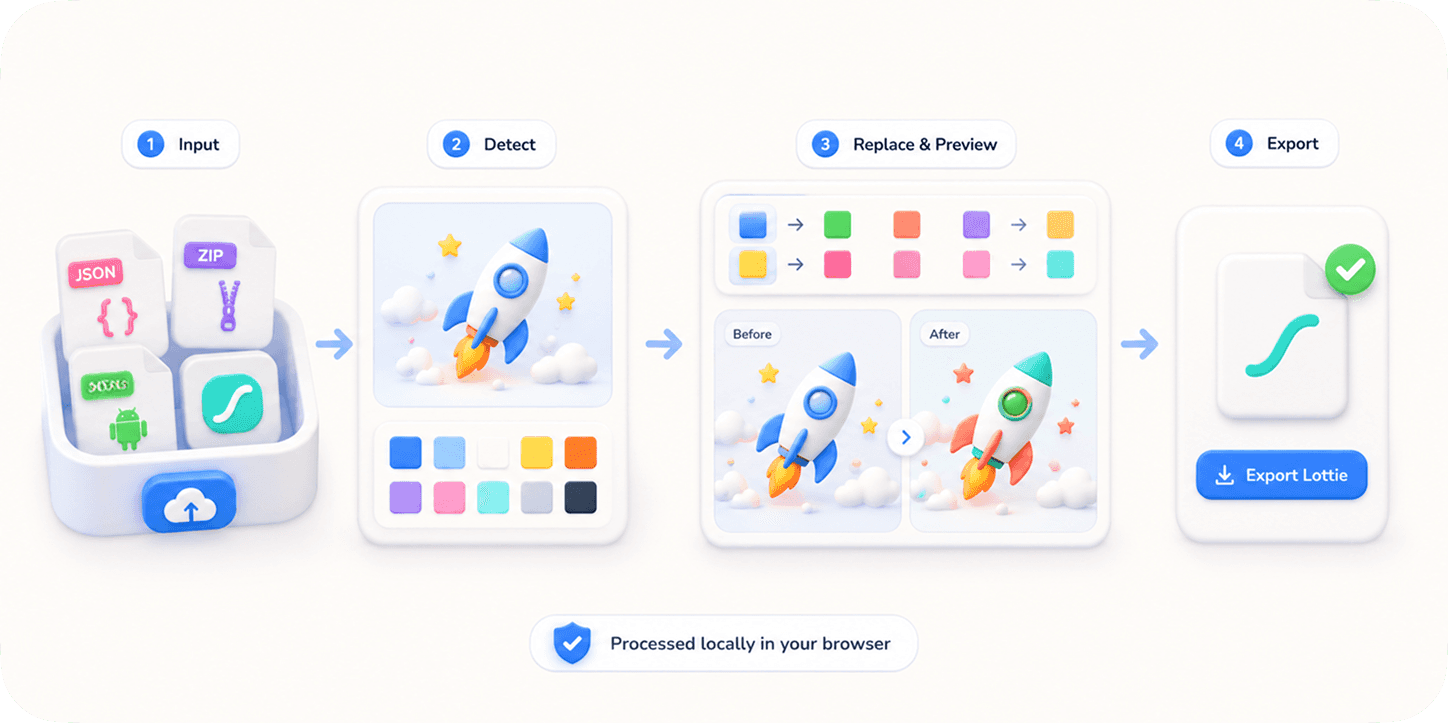
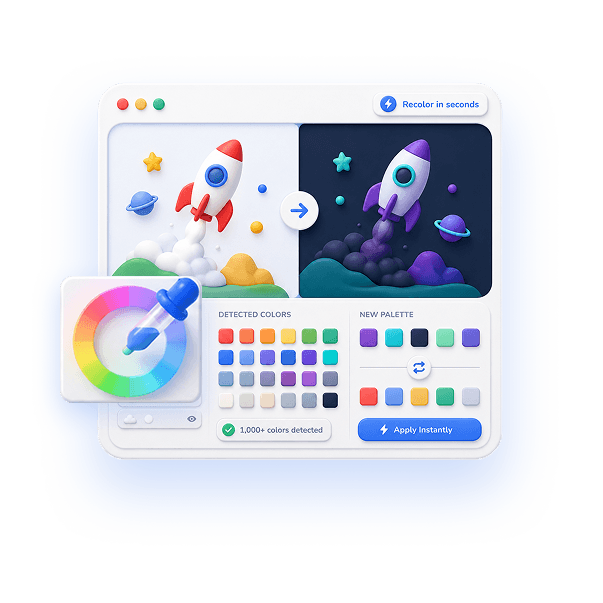
A browser-based Lottie color editor solves the practical version of the problem. It scans the JSON for editable fill, stroke, and gradient values, lets you map old colors to new ones, and shows the result immediately in a live preview.
How to change Lottie colors online
Start by uploading the Lottie JSON or ZIP. The editor detects color values and groups them into a palette. Review the detected colors before changing anything; repeated values are often intentional tokens used across multiple layers.
Pick the color you want to replace and choose the new value with a picker or hex input. Good workflow is to replace the largest brand colors first, then adjust supporting neutrals, warning colors, highlights, and shadows. Preview each change instead of replacing everything at once.
When the animation looks right on both light and dark backgrounds, export the edited JSON or ZIP. The export preserves the animation structure, so developers can use the edited file in the same Lottie runtime they already planned to use.
Avoid common recoloring mistakes
Do not blindly replace every similar blue, red, or gray. Designers often use nearby color values to create depth, antialiasing, or subtle shadows. Replacing all of them with one flat value can make the animation look cheaper.
Test contrast after recoloring. A success checkmark that looks good on white may disappear on a tinted card. A dark-mode variant may need brighter strokes, not just inverted colors. Use preview backgrounds as part of the edit, not as an afterthought.
Remember that raster images are different from vector shapes. A color editor can change Lottie JSON color values, but it will not recolor embedded PNG screenshots or logos. For those, use an image replacement tool.
Best use cases
Color editing is perfect for brand matching, dark-mode variants, seasonal campaigns, client customization, product UI states, and small design-system changes. It is less suitable for rewriting the structure of an animation or changing a vector illustration into a different object.
If you need deeper motion changes such as keyframes, paths, masks, or easing curves, go back to the source file in After Effects. For palette work, the browser workflow is usually faster and safer.
Quick checklist
- Upload JSON or ZIP and review detected colors.
- Replace brand colors first, then supporting colors.
- Preview on realistic light and dark backgrounds.
- Keep subtle shadows and highlights when possible.
- Export JSON or ZIP and test in your target runtime.
Reproduce the workflow
Use these local sample files to repeat the checks described in this guide. Review the file before using it in a production project.
Tested result: recoloring without changing timing
The downloadable spinner and pulse files give us a controlled recoloring test because both use the same 240 x 240 canvas, 30 fps timing, 60-frame range, and two-second duration. A correct color edit changes visual color properties while those structural values remain stable after export.
| Validation point | Expected before edit | Expected after edit |
|---|---|---|
| Canvas | 240 x 240 | 240 x 240 |
| Timing | 30 fps and 60 frames | 30 fps and 60 frames |
| External assets | 0 | 0 |
| Playback | Complete two-second loop | Same complete two-second loop |
| Color values | Original fill and stroke values | Only selected values replaced |
Treat timing and dimensions as regression checks. If duration, frame range, or canvas size changes during a palette edit, the export has modified more than color and should not replace the production asset.
Test one intentional mapping at a time. Nearby shades may represent highlights, shadows, or antialiasing. Collapsing all of them into one brand color removes depth even when the JSON remains technically valid.
Know the limits
- Color tools can change vector fills, strokes, and supported gradient stops stored in JSON. They cannot reliably recolor pixels baked into PNG, JPEG, WebP, or other raster assets.
- Expressions, effects, and renderer-specific features may calculate color at playback time. A detected static value is not proof that every visible color can be edited safely.
- A palette that passes on white may fail contrast requirements on dark mode, tinted cards, or high-contrast accessibility themes.
If your result is different
- 1.Undo the latest replacement and retest a single detected value to identify whether a grouped color controls more layers than expected.
- 2.Compare the exported width, height, frame rate, in point, and out point with the original file before investigating visual differences.
- 3.If the visible artwork is a raster image, move that change to Image Replace instead of forcing a JSON color substitution.
- 4.If one renderer differs from the browser preview, review its supported-feature matrix and test a simpler fill or gradient export.
Frequently asked questions
Can I change Lottie colors without After Effects?
Yes. If the colors are stored as editable Lottie JSON values, EasyLottie can detect and replace them in the browser.
Does color editing work on gradients?
EasyLottie detects common gradient stops as well as solid fills and strokes.
Can I recolor image assets inside a Lottie?
No. Raster images are not recolored by the color editor. Use Image Replace when the artwork is an embedded image.
Are my files uploaded?
No. The edit runs locally in your browser.
Primary sources
Technical behavior was checked against the original runtime or format documentation below.