EasyLottie Guide
How to Preview a Lottie JSON File Online
A practical guide to checking a Lottie JSON or ZIP before you ship it, edit it, or hand it to a developer.
Why preview the file before editing it?
A Lottie file can look simple from the outside, but the JSON often carries timing, dimensions, image references, frame rate, hidden layers, and renderer-specific details. Opening it in a text editor rarely tells you whether it will play correctly in a product UI. A dedicated Lottie viewer gives you the fast answer: does the animation render, loop, and feel right?
Previewing first is especially useful when a file comes from a marketplace, a designer handoff, an AI-assisted workflow, or an export pipeline you do not control. You can catch missing assets, oversized canvases, unexpected background assumptions, and animation timing issues before you spend time recoloring or replacing content.
Step-by-step: preview a Lottie JSON online
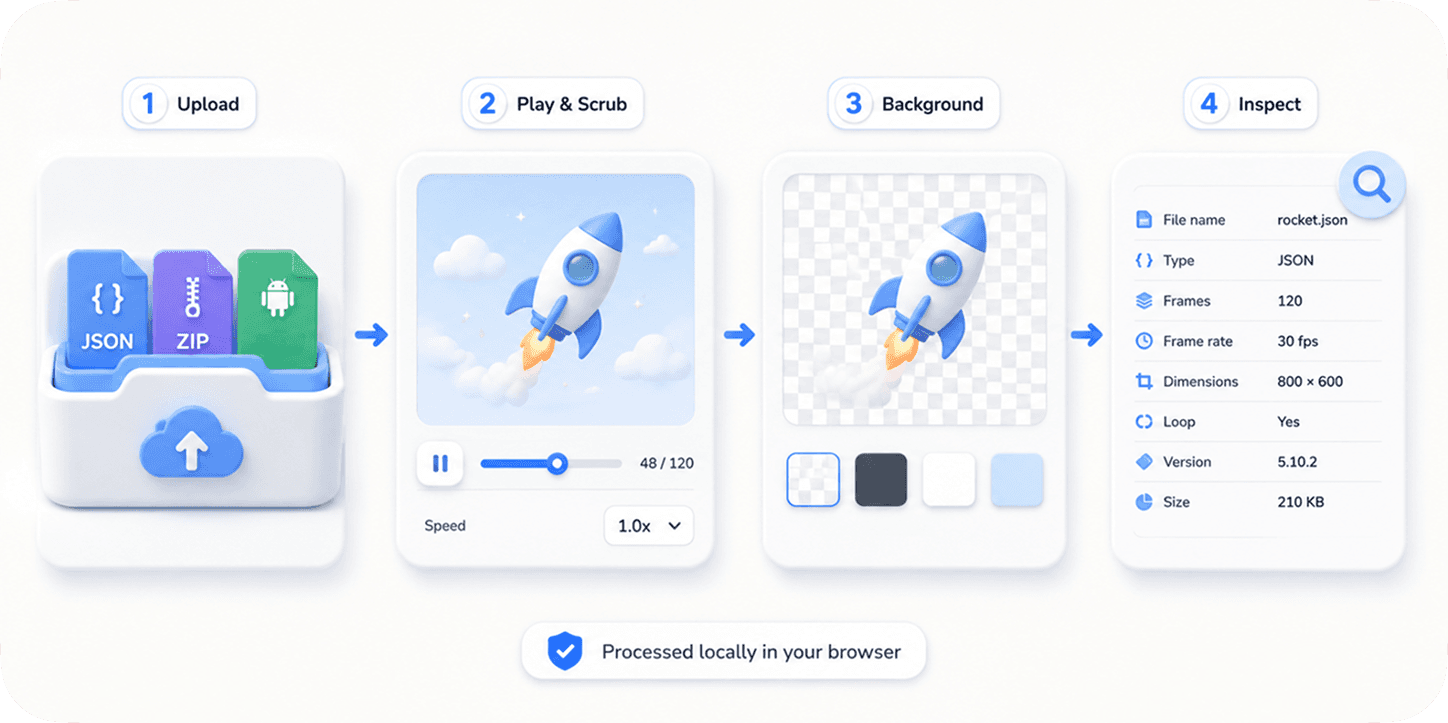
Open EasyLottie Preview and drop in the JSON file. If the animation references external images, package the JSON and images as a ZIP and upload that instead. The viewer reads the file in your browser, resolves supported assets, and starts playback without sending your file to a server.
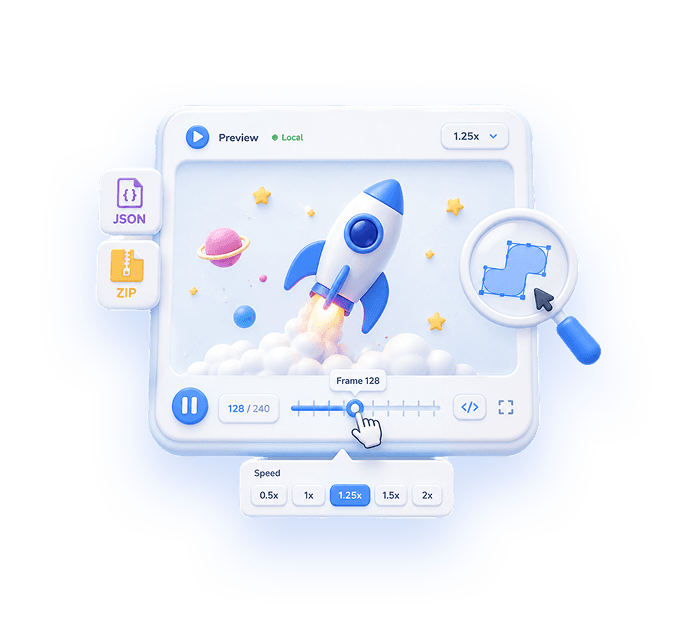
Use the playback controls to test speed, looping, and pause states. Change the preview background to light, dark, transparent-style checkerboard, or a brand color so you can see whether strokes, fills, shadows, and image edges still hold up.
Inspect the file details after playback starts. Width, height, frame rate, duration, and file size are not trivia. They determine whether the animation will fit a button, an onboarding screen, a website hero, or a mobile loading state without extra scaling work.
What to check before shipping
Start with visual correctness. The animation should play from the first frame without flashes, missing images, or sudden jumps. If it depends on a white background, verify that the page where you will embed it also has a compatible surface.
Next, check motion intent. A loading animation usually needs a seamless loop. A success animation may need to play once and stop on the final state. A decorative hero animation can be slower, but it should not distract from the primary content.
Finally, decide whether the file needs editing. If the color palette is wrong, move to a Lottie color editor. If screenshots, logos, or raster illustrations are stale, use an image replacement workflow. Previewing first keeps those edits focused.
JSON, ZIP, and APK files behave differently
A plain Lottie JSON works well when every shape, color, and asset is embedded or vector-based. ZIP packages are better for animations that include image assets, because the package keeps the JSON and referenced files together. Some Android handoffs use APK packages that contain animation assets inside app resources.
When a JSON file looks broken in a viewer, the cause is often not the animation itself. It may simply be missing an external image folder. Ask for the complete ZIP, or rebuild the package so referenced images sit next to the JSON in the expected path.
Quick checklist
- Confirm the animation renders without missing assets.
- Test loop behavior and playback speed.
- Switch background colors to catch low-contrast details.
- Review dimensions, frame rate, duration, and file size.
- Send color or image changes to the right EasyLottie editor.
Reproduce the workflow
Use these local sample files to repeat the checks described in this guide. Review the file before using it in a production project.
Tested result: two known-good JSON files
We inspected and previewed the downloadable spinner and pulse files as a controlled baseline. Both are self-contained shape animations, so a missing image cannot explain a failed render. That makes them useful for separating a player or page integration problem from a problem inside an uploaded file.
| Check | spinner.json | pulse.json |
|---|---|---|
| File size | 1,527 bytes | 1,357 bytes |
| Canvas | 240 x 240 | 240 x 240 |
| Timing | 30 fps, 60 frames, 2 seconds | 30 fps, 60 frames, 2 seconds |
| Structure | 1 layer, 0 external assets | 1 layer, 0 external assets |
| Lottie version field | 5.7.4 | 5.7.4 |
A valid preview is more than seeing motion. Confirm the canvas, frame range, frame rate, duration, layer count, and asset dependencies before deciding that a file is ready to ship.
If these two files play but your file does not, the viewer and browser can render Lottie. Move the investigation to malformed JSON, unsupported features, missing assets, or an invalid frame range in the original file.
Know the limits
- A browser preview proves that one renderer can parse and display the file. It does not guarantee identical results in every iOS, Android, React Native, Flutter, canvas, SVG, or HTML renderer.
- Visual inspection cannot detect every performance problem. A complex animation may look correct on a desktop while dropping frames on a lower-powered phone.
- A JSON file can parse successfully while still referencing external assets that were not included in the handoff. Test the exact package you plan to deploy.
If your result is different
- 1.Open spinner.json first. If it fails, check browser extensions, content security policy, runtime loading, and the size of the animation container.
- 2.If the baseline works, inspect the original file for a non-empty layers array, a positive frame range, valid width and height, and referenced assets.
- 3.Retest the original as a complete ZIP when its assets array contains image paths. Do not rename or flatten folders until playback succeeds.
- 4.Finally, run the same file in the target runtime and compare renderer support before changing the animation itself.
Frequently asked questions
Can I preview a Lottie JSON without uploading it?
Yes. EasyLottie Preview reads and renders the file locally in your browser.
Why does my Lottie JSON show missing images?
The JSON probably references external assets. Upload a ZIP that contains both the JSON and image files.
Can I preview a Lottie ZIP online?
Yes. EasyLottie Preview supports ZIP packages with referenced Lottie image assets.
What should I do after previewing?
If the animation needs visual edits, use Color Swap for palette changes or Image Replace for logos, screenshots, and raster assets.
Primary sources
Technical behavior was checked against the original runtime or format documentation below.