EasyLottie Guide
How to Replace Images in a Lottie Animation
Swap embedded images inside a Lottie file while keeping the original timing, motion, and export format intact.
Why image replacement matters
Many Lottie animations are a mix of vector shapes and raster image assets. Product screenshots, logos, avatars, icons, and textured illustrations are often stored as images inside the package. That makes the animation easy to customize if you have the right tool, and frustrating if you only have the final JSON.
The old workflow was to ask the motion designer to reopen After Effects, replace the asset, and export again. That requires the source project and the person who created it. A Lottie image replacement workflow lets a marketer, founder, developer, or localization manager make the change directly from the delivered file.
How to replace an image inside a Lottie file
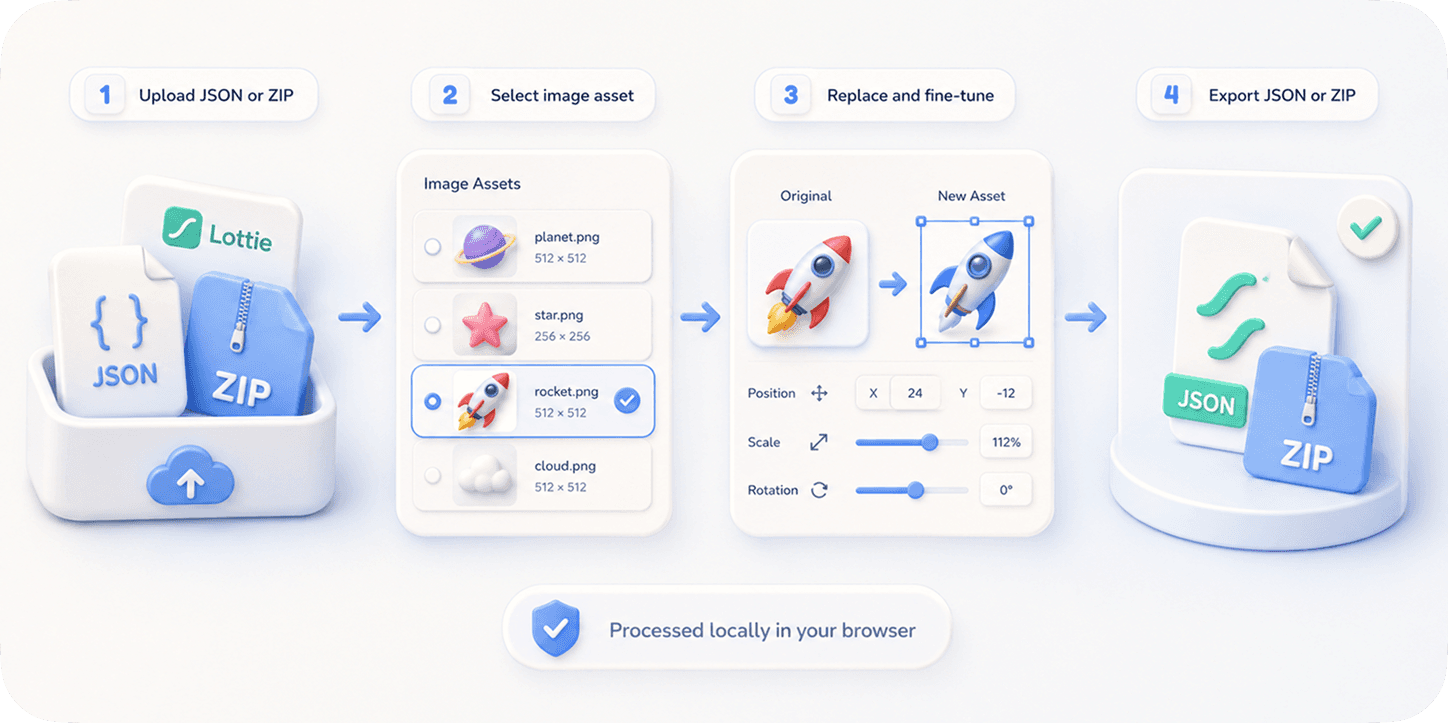
Upload your Lottie JSON or ZIP to EasyLottie Image Replace. If the file is a ZIP, the tool resolves the referenced assets and shows them as editable resources. If the images are embedded directly in JSON, the tool detects those as well.
Select the image you want to replace from the asset list or preview. Upload the new PNG, JPG, JPEG, or WebP. Then adjust fit, scale, crop, and offset until the replacement sits naturally inside the original animation.
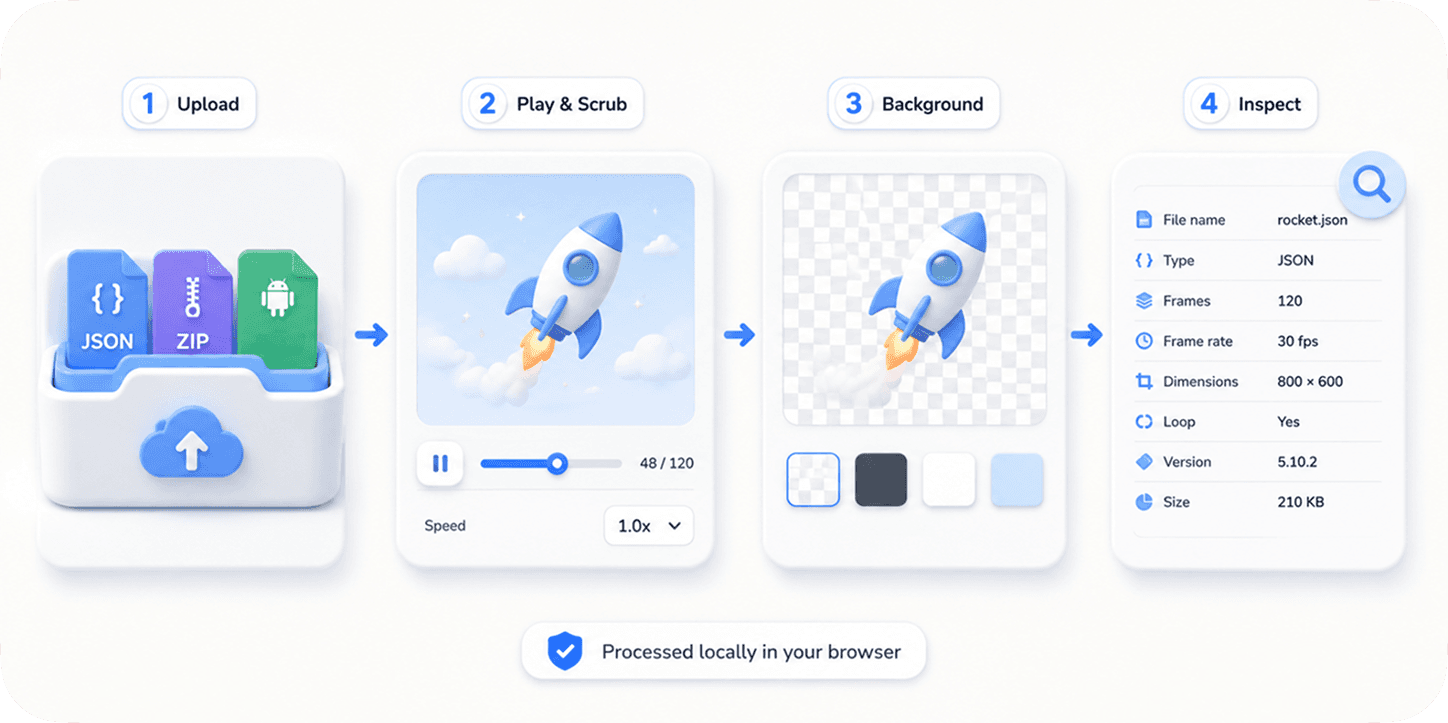
Preview the animation before exporting. The timing and motion should remain unchanged; only the selected visual asset should be different. Export a JSON for simple embedded files or a ZIP when external image assets need to travel with the animation.
Good replacement assets make the edit easier
Match the aspect ratio of the original image when you can. A square logo dropped into a wide screenshot frame will require scaling and cropping. Transparent PNGs are usually best for logos and icons, while JPG or WebP can be fine for full-frame photos.
Use images that are at least as large as the original asset. Upscaling a small screenshot inside an animation often creates blur. If the original animation has subtle motion blur or shadows, check the result at playback speed rather than judging only the still frame.
Use cases for Lottie asset replacement
Image Replace is useful for localizing tutorial animations, updating product screenshots after a UI redesign, white-labeling a template with a client logo, replacing placeholder avatars, or refreshing campaign visuals without touching the animation timeline.
It is also helpful for privacy-sensitive work. Since the file is processed locally, unreleased screenshots and client assets do not need to be uploaded to a third-party conversion service.
Quick checklist
- Use ZIP when the JSON references external images.
- Select the exact asset before uploading the replacement.
- Match aspect ratio and resolution where possible.
- Preview motion, not just the still frame.
- Export ZIP for complete packages with image assets.
Validation result: what must remain unchanged
Image replacement is successful only when the selected visual changes and the animation contract remains intact. The test is therefore a before-and-after comparison of package paths, canvas and timing metadata, asset dimensions, transparency, and playback rather than a visual glance at one frame.
| Check | Before replacement | After replacement |
|---|---|---|
| Animation timing | Original frame rate and frame range | Exactly the same values |
| Asset reference | Existing asset ID and expected folder | Reference resolves to the new image |
| Fit | Original crop and placement | Intentional crop with no stretching |
| Transparency | Expected alpha around the asset | No matte box or bright edge halo |
| Package playback | All scenes and layers render | All scenes render with only the chosen image changed |
Matching aspect ratio reduces the amount of crop and offset correction required. Matching pixel dimensions is useful, but the visible fit depends on the transform and mask applied by the animation.
The exported file must be tested as a package. A preview inside the editor may still differ from deployment when a build pipeline moves the JSON but omits or fingerprints its image folder.
Know the limits
- Replacing an image does not redraw the animation, change its mask, or repair a composition that was designed for a different aspect ratio.
- A larger source image can increase package weight and memory use even when it is displayed in a small region of the animation.
- Some runtimes resolve external asset paths differently. A package that previews correctly must still be tested after bundling, CDN upload, or native-app packaging.
If your result is different
- 1.Restore the original package and confirm it still plays. This separates a pre-existing broken handoff from a replacement problem.
- 2.Match the replacement aspect ratio, then adjust fit and offset before increasing resolution or changing the animation canvas.
- 3.Keep the expected folder structure and file extension when the runtime relies on an external path.
- 4.Preview the exported JSON or ZIP in a clean session, then test the exact deployed URL or native bundle.
Frequently asked questions
Can I replace a logo inside a Lottie animation?
Yes, if the logo is stored as an image asset. Select it in Image Replace, upload your new logo, and export.
Does this work without the After Effects source file?
Yes. EasyLottie works from the delivered Lottie JSON or ZIP package.
Can I replace vector paths?
Image Replace is for raster image assets. Vector path editing belongs in a motion design tool.
Should I export JSON or ZIP?
Use JSON for simple embedded files and ZIP when the animation references external image assets.
Primary sources
Technical behavior was checked against the original runtime or format documentation below.