Change Lottie animation speed and inspect playback
Play, pause, scrub, and adjust the playback speed of any Lottie animation in your browser. See exactly how fast it runs before you wire the speed into your code.
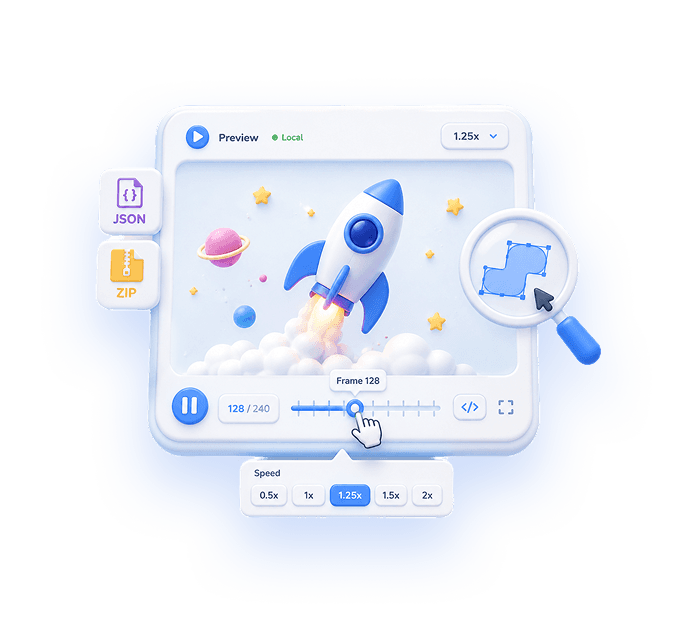
The problem
A Lottie that looked great in the design tool often feels wrong in context — a loading spinner spins too lazily, an onboarding flourish drags, or a micro-interaction snaps by before anyone notices it. You need to find the right tempo, and eyeballing it from a static JSON is impossible.
Speed in Lottie isn't one simple number. There's the animation's authored frame rate (fr) and its in and out points, and then there's the playback speed your runtime applies on top. Knowing which lever to pull — and what value to pass to lottie-web's setSpeed or the iOS and Android players — requires actually seeing the animation move at different rates.
Reopening After Effects to retime keyframes is overkill when all you want is to confirm a tempo and read off the FPS. And committing a speed value straight into your app code, then rebuilding to check it, is a slow guess-and-check loop.
The browser workflow
EasyLottie Preview lets you load a Lottie and immediately control its playback: play, pause, scrub to any frame, and dial the speed up or down with a slider while the animation runs. You find the tempo that feels right by watching it, not by guessing at numbers.
Because you can inspect the file directly, you can read the animation's authored FPS and frame range and reconcile them with the playback multiplier you want. That tells you exactly what speed value to pass to your Lottie player so the result in production matches what you saw here.
It's honest about scope: Preview is for inspecting and dialing in playback speed, not rebaking keyframe timing into the file. If you need to permanently retime the animation's internal keyframes, that's still an After Effects job. For finding and verifying a playback rate, this is faster, free, runs in the browser, and never uploads your file.
Complete the task
Open Preview
Go to easylottie.com/preview. It loads instantly with no signup and no install, and it runs entirely in your browser.
Upload your animation
Drag in a .json, .zip, or .apk file (up to 50 MB). The animation starts playing in the preview right away so you can see its default tempo.
Adjust the playback speed
Use the speed slider to run the animation faster or slower in real time. Watch how it feels at different rates instead of guessing at a multiplier.
Scrub and inspect
Pause and scrub frame by frame to check key moments, and inspect the file to read its authored frame rate and frame range.
Apply the speed in your project
Take the playback rate that looked right and pass it to your runtime — for example lottie-web's setSpeed, or the equivalent on lottie-ios and lottie-android — so production matches what you previewed.
Common use cases
Tune a loading spinner
A spinner that feels sluggish at 1x might be perfect at 1.5x. Dial it in visually, then set that speed in your player so the loader feels responsive.
Match motion to a video or audio cue
Scrub frame by frame and adjust speed to line an animation up with a soundtrack beat or a video moment before locking the timing into your build.
Sanity-check an unfamiliar Lottie
Received a Lottie from a designer or a marketplace? Preview it, scrub through every frame, and confirm the speed and FPS before you commit to integrating it.
Frequently asked questions
How much can I change the speed?
You can slow the animation down or speed it up well beyond its default rate using the slider, watching the result live. The preview shows the new tempo in real time so you can settle on a value before applying it in code.
Does changing the speed reduce quality?
No. Playback speed is a multiplier on timing — it doesn't touch the vector shapes or resolution, so the animation stays crisp at any rate.
Does it work with loops?
Yes. You can watch the animation loop continuously at your chosen speed in the preview, which makes it easy to judge how a looping spinner or background animation will feel in your UI.
What's the difference between FPS and playback speed?
FPS (the authored frame rate, stored as fr in the JSON) is how the animation was created; playback speed is a runtime multiplier applied on top. Preview lets you inspect the FPS and experiment with playback speed so you know exactly what value to set in your player.
Can it permanently retime the keyframes in the file?
Preview is built to inspect and adjust playback speed, not to rebake internal keyframe timing into the exported file. For permanent retiming of the animation's keyframes, After Effects is still the right tool — but for finding and verifying a playback rate, Preview is faster and free.