Edit a Lottie animation for your SwiftUI app
lottie-ios renders the animation inside a UIViewRepresentable — it does not edit the file. Swap images and recolor a downloaded Lottie in the browser, then add a clean file to your app bundle. No After Effects.
The problem
You added lottie-ios via Swift Package Manager, wrapped LottieView (or a LottieAnimationView in a UIViewRepresentable) into SwiftUI, and it plays smoothly. But the animation still carries a placeholder screenshot and colors that clash with your app's accent — the framework renders the file, it does not change its contents.
lottie-ios does support runtime color overrides through ColorValueProvider and AnimationKeypath, but discovering the exact keypath for every fill and stroke is tedious, the Swift glue piles up, and it has to be rewritten whenever the source animation is updated. Swapping an embedded image asset has no clean runtime path at all.
Sending the file back through After Effects to align it with your Human Interface Guidelines palette stalls your iteration. You would rather treat the .json like any other resource in the bundle: get it right once, add it to the target, and load it with one line of Swift.
The browser workflow
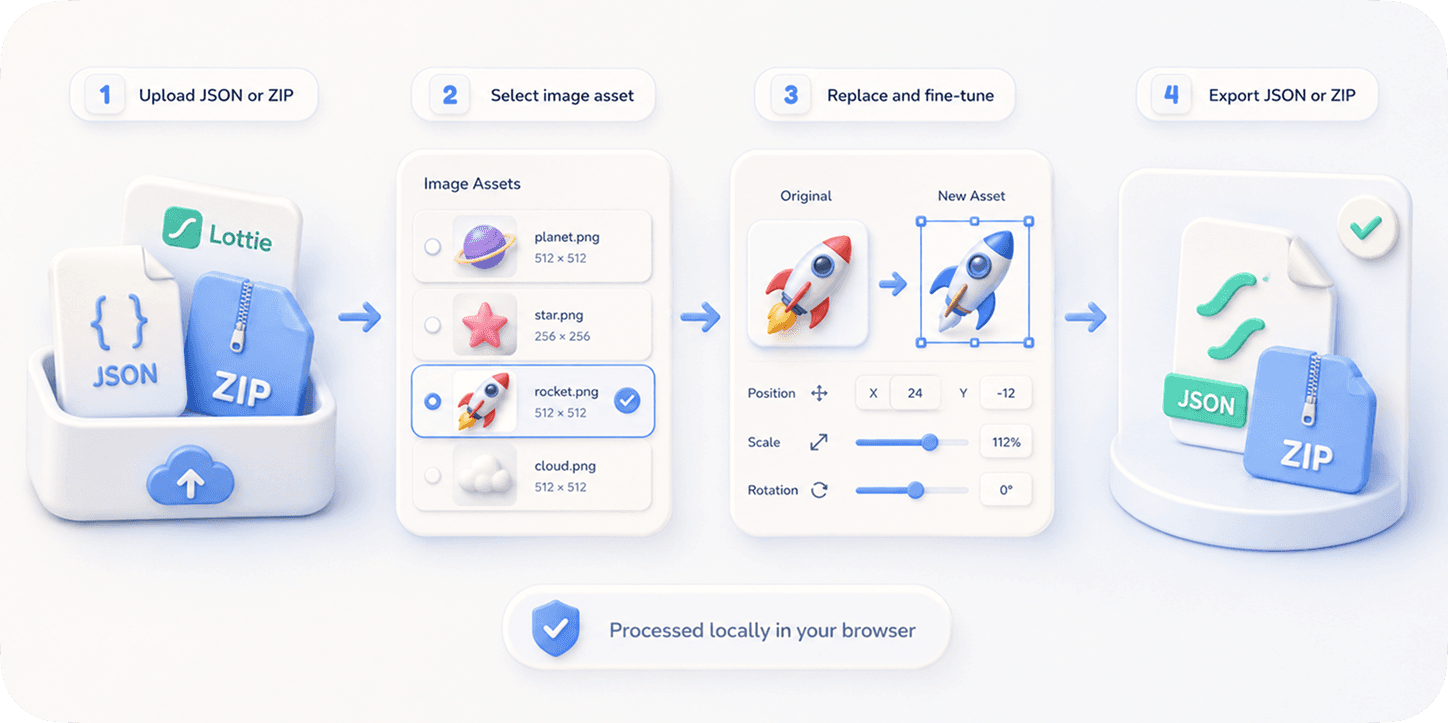
EasyLottie corrects the file before it goes into your app bundle. Image Replace detects every embedded image asset — inline base64 in .json or external files in .zip — and lets you drop in your own PNG, JPG, or WebP, fine-tuning scale, position, and crop in a live preview.
For palette work, Color Swap auto-detects up to 1000+ colors in the same file and lets you reassign each to your app's exact accent and background values. Both tools run 100% locally in the browser — no upload, no signup, and no ColorValueProvider keypaths to maintain in Swift.
Export a standard Lottie file, add it to your Xcode target, and load it with LottieView or LottieAnimationView. Because the assets and colors are already baked in correctly, your SwiftUI view stays clean — just reference the animation by name and play it.
Complete the task
Download the animation
Get the .json or .zip you plan to render with lottie-ios in your SwiftUI app, from a library or a designer handoff.
Open the right EasyLottie tool
Use Image Replace at easylottie.com/imagereplace for screenshots and logos, or Color Swap for accent colors. Both run in the browser.
Swap assets and recolor
Replace embedded images with your own and reassign detected colors to your HIG palette. The live preview shows exactly what will ship.
Export the corrected file
Click Export to download a standard Lottie JSON or ZIP — valid asset references, ready for lottie-ios and every other runtime.
Add it to your iOS app
Drop the file into your Xcode target and load it with LottieView("anim") or a LottieAnimationView — no ColorValueProvider code needed.
Common use cases
App Store screenshots in onboarding
Replace generic device mockups in an onboarding animation with your actual app screens before it ships in the bundle.
Accent-matched loaders
Recolor a loading animation to your app's tint color so spinners and progress states feel native to iOS.
Dark mode support
Build a dark variant of the same Lottie and load it based on the SwiftUI colorScheme environment value.
Frequently asked questions
Can I avoid ColorValueProvider keypath code?
Yes. Color Swap recolors every detected color in the file directly, so the animation arrives already on-brand and your SwiftUI view can just load and play it.
Does the exported file work with lottie-ios?
Yes. The export is standard Lottie JSON with intact structure, which lottie-ios renders the same as any other compatible Lottie animation.
Can I swap an embedded image for an iOS animation?
Yes. Image Replace detects embedded image assets in JSON or ZIP files, lets you replace them and fine-tune the fit, then export a bundle-ready file.
Is my file uploaded while I edit?
No. Both tools are 100% local and browser-only — your animation and replacement images never leave your machine.
Will editing colors affect playback in LottieView?
No. Only color values change; timing, frames, and structure are preserved, so playback, loop modes, and controllers behave exactly as before.