Localize a Lottie animation for different languages and markets
Ship one animation in five languages by swapping the text-baked images and localized assets inside it — in your browser, in seconds, no After Effects.
The problem
A Lottie animation built for one market rarely travels well. The headline is rendered as a baked-in PNG, the call-to-action button is an image, the illustration shows a left-to-right reading order, and the screenshot inside your onboarding shows an English UI. None of it changes when you change the page locale.
The obvious fix — re-export a fresh Lottie per language from After Effects — assumes you have the .aep source, a motion designer on call, and the time to round-trip five or ten variants. For most teams shipping into new markets fast, none of those three things are true.
Editing the JSON by hand to swap localized assets is fragile: assets may be inline base64, packed in a ZIP, or named img_0.png with no hint of which language layer is which. One bad encoding and the animation breaks in production, in a market you cannot easily QA.
The browser workflow
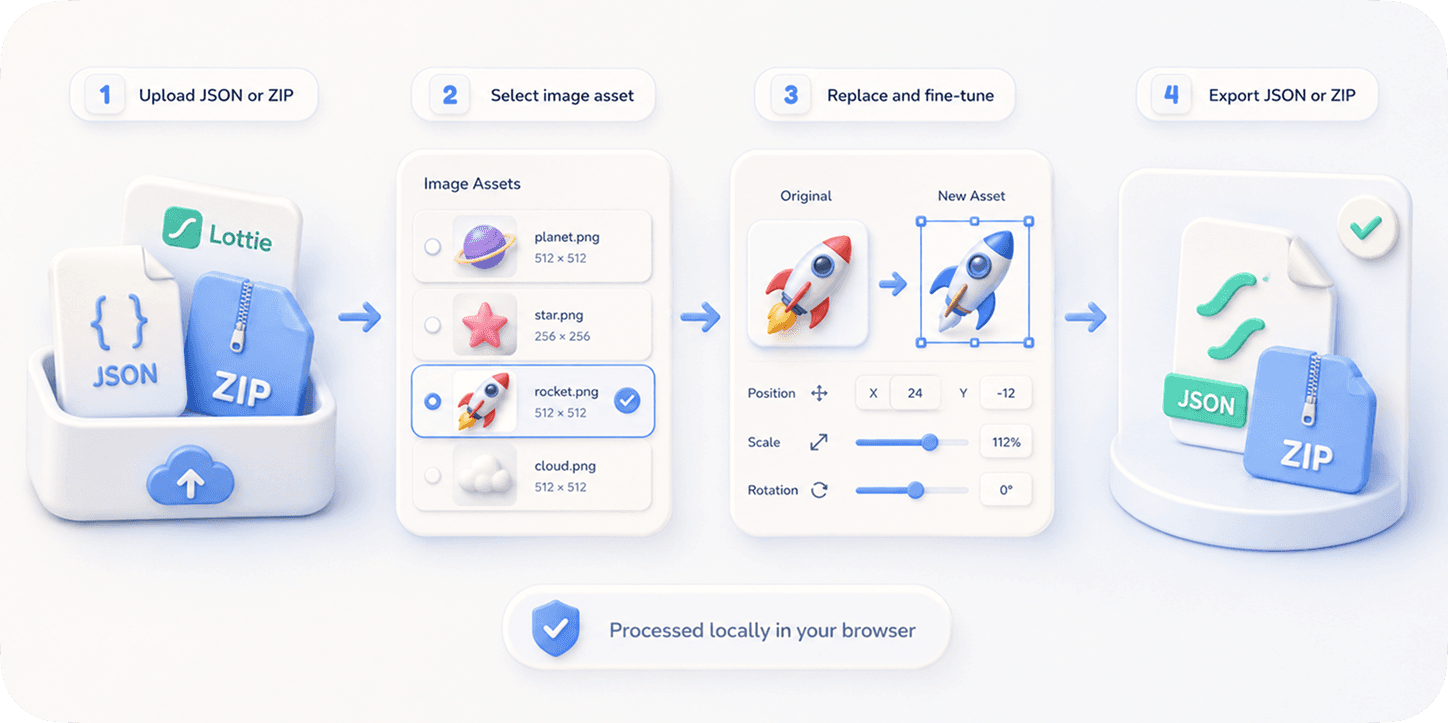
EasyLottie's Image Replace tool reads every image asset inside your Lottie — inline base64 in a .json or external files in a .zip — and lists them as thumbnails. You localize by swapping each text-baked image (headline, button, label, screenshot) for its translated version, one drag-and-drop at a time.
Be clear-eyed about scope: EasyLottie swaps image assets. It does not do live-text editing — if your headline is a true Lottie text layer rather than a baked image, you will localize that copy in code at render time, not here. What EasyLottie owns is the part that is otherwise stuck: the localized illustrations, flags, UI screenshots, and text-rendered-as-image layers that have no runtime hook.
Everything is local — files never leave the browser, which matters when your localized screenshots show unreleased product UI. Produce a German, Japanese, and Arabic variant from the same base file, with a 20-step undo to walk back any swap, and export each as a clean ZIP that plays in every Lottie runtime.
Complete the task
Open Image Replace
Go to easylottie.com/imagereplace. It loads instantly — no signup, no install, nothing uploaded.
Upload your base-language Lottie
Drop the .json or .zip in. The animation renders live on the left; every image asset is listed on the right with a thumbnail so you can spot the text-baked ones.
Find the localized assets
Click the headline image, button image, or UI screenshot directly in the preview, or pick it from the resource panel. The selected layer highlights so you know exactly which locale-specific asset you are editing.
Drop in the translated image
Replace each baked-text or localized illustration with its translated PNG / JPG / WebP. The preview updates in real time so you can confirm the new copy fits before exporting.
Fine-tune and export per market
Adjust scale, position, and crop when a translated string is longer than the original — German runs long, CJK runs short. Export one ZIP per language and ship.
Common use cases
Multi-market product launch
Localize the onboarding animation for every region you launch in by swapping the baked headline and the in-animation UI screenshot to the matching language.
RTL adaptation
Replace left-to-right illustrations and text-baked labels with right-to-left versions for Arabic or Hebrew markets, all from the same source file.
App store preview variants
Generate one promo Lottie per locale by swapping the text-baked tagline image, without re-rendering from After Effects for each store listing.
Frequently asked questions
Can EasyLottie translate the text inside my Lottie automatically?
No. EasyLottie swaps image assets — it is not a translation engine and does not edit live Lottie text layers. You bring the already-translated images; the tool puts them in place.
My headline is a real Lottie text layer, not an image. Can I localize it here?
Not in EasyLottie. True live-text layers are best localized in code at render time, or re-exported from After Effects. EasyLottie handles text that was baked into image assets, which is the common stuck case.
How do I handle a translated string that is longer than the original?
Use the fine-tune controls to scale and reposition the replacement image. The preview shows the fit live, so you can balance a longer German string or a shorter Japanese one before exporting.
Are my unreleased localized screenshots uploaded anywhere?
Never. Every operation runs locally in your browser. Your source file and localized assets stay on your device — nothing is sent to a server.
Will each localized export still play correctly across runtimes?
Yes. Each export is a standard Lottie JSON with normal asset references, so it plays in lottie-web, lottie-ios, lottie-android, Webflow, and Framer.